🚀 Bring Back Windows 10 Custom Toolbars to Windows 11 with SysTrayFolder!
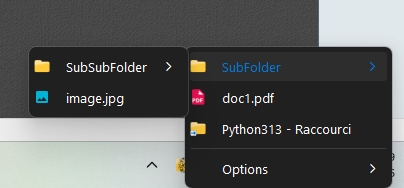
Missing the custom taskbar toolbars (Quick Launch) since upgrading to Windows 11? Microsoft removed this crucial feature that allowed you to access your shortcut folders with a single click.
SysTrayFolder is a free, ultra-lightweight utility designed to fix this. It places a legacy-style icon directly into your System Tray. A simple click triggers a fluid pop-up menu displaying the exact contents of the folder you specify (shortcuts, apps, scripts).
Built using Python and bundled as a standalone executable via PyInstaller, this tool runs instantly without requiring any dependencies. For complete transparency and peace of mind, the source code is fully provided and open for review.
🛠️ Key Features
- Ultra-Fast Access: Open your favorite folders directly from the taskbar.
- Dynamic Pop-up Menu: Instantly view your shortcuts, scripts, and files.
- Lightweight & Portable: A single standalone executable file (.exe) with no installation required.
- Open Source: Python source code included so you can inspect, audit, or customize the tool.
- Total Flexibility: Run multiple instances simultaneously to target different folders.
💻 How to Use It
Using SysTrayFolder is straightforward and done via command line or a shortcut. You just need to pass the target folder path in quotes:
systrayfolder.exe "C:\Path\To\Your\Folder"
⚙️ How to Run It Automatically at Windows Startup
To ensure your custom toolbar is always ready when you turn on your PC, follow these simple steps:
- Right-click your
systrayfolder.exefile and select Create shortcut. - Right-click the newly created shortcut, go to Properties, and open the Shortcut tab.
- In the Target field, add a space after the existing quotes, then type your folder path (e.g.,
"C:\Path\To\systrayfolder.exe" "C:\MyFolder"). Click OK. - Press
Windows + Ron your keyboard to open the Run dialog box. - Type
shell:startupand press Enter. This will open the Windows “Startup” folder. - Move or copy your modified shortcut into this folder. You’re done! SysTrayFolder will now launch automatically every time Windows starts.
📥 Download & Source Code
Retrouvez la productivité de Windows 10 sur votre système moderne en toute sécurité.
- Télécharger SysTrayFolder pour Windows 11 (Gratuit)
- Consulter le Code Source Python